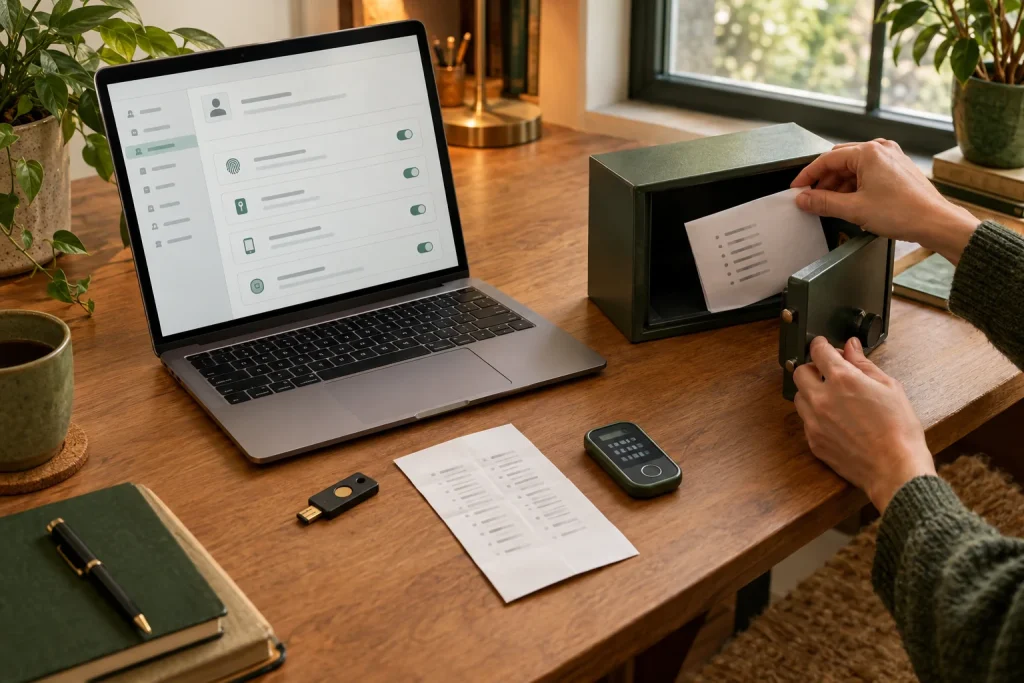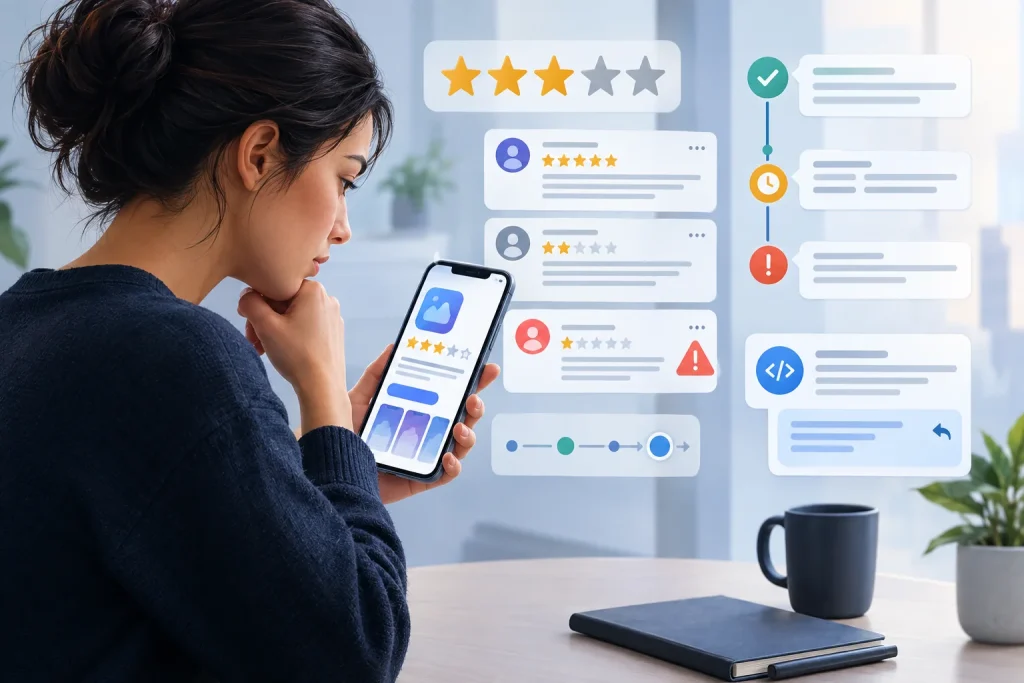
To prevent accidental in-app purchases on Android, start by requiring verification for every Google Play purchase. Then review saved payment methods, configure purchase approvals for children, secure access to the device, and check transaction history regularly.
No single setting covers every possible payment route. The safest approach is to use several controls together, especially on a phone or tablet shared with children or other household members.
Quick protection checklist
- Require verification for every purchase: Avoid a verification window that permits additional transactions without another check.
- Protect your password and biometrics: Anyone who can complete the verification may be able to authorize a charge.
- Remove unnecessary payment methods: Fewer active payment options reduce the chance of selecting one unintentionally.
- Set purchase approvals for children: Use a supervised account or family controls rather than relying only on verbal rules.
- Review subscriptions and purchase history: Look for unfamiliar charges, duplicate purchases, and trials that converted to paid plans.
- Do not treat a spending budget as a block: A Google Play budget can help track spending, but it does not prevent transactions.
How to prevent accidental in-app purchases on Android with verification
Purchase verification is the most important first step. It requires a password, PIN, biometric check, or another supported verification method before a transaction can be completed through Google Play.
Menu wording can vary by Android version, country, account type, and Google Play Store release. In the Play Store, tap your profile picture and open Settings. Look for a section named Authentication or Purchase verification, then select the option for requiring authentication or changing verification frequency.
Choose the strongest available frequency
Select the option that requires verification for every purchase. Depending on the interface, it may be described as For all purchases through Google Play on this device, Always, or similar wording.
A setting that verifies only once during a time window is less protective. After the first approved transaction, another person using the device may be able to make more purchases before that window closes. Requiring a check every time adds a deliberate pause before each charge.
Repeat this check for every Google account used in the Play Store and on every relevant device. Purchase settings may be tied to a specific account, device, or both, so configuring one phone does not guarantee that a second tablet has the same protection.
Use biometric verification carefully
Fingerprint or face verification can make purchase approval convenient, but convenience is not the same as exclusive control. Review which fingerprints, faces, or other biometric credentials are enrolled on the device. A biometric belonging to another household member could potentially be used where the device accepts it for purchase verification.
Remove biometric profiles that should not authorize purchases, or use a password that only the account owner knows. Keep the device screen lock private as well. A purchase prompt cannot provide meaningful protection if the person using the device also knows every required credential.
For current menu instructions and account-specific guidance, consult the official Google Play Help center.
Review saved payment methods
Verification helps stop an unintended tap from becoming a completed purchase. Reviewing payment methods limits which funding sources are available if a transaction is approved.
Open the Play Store, tap the profile picture, and choose Payments & subscriptions, followed by Payment methods. Depending on the account, you may see credit or debit cards, carrier billing, Google Play balance, PayPal, or other locally supported options.
Remove expired cards, old accounts, and payment methods you no longer intend to use. You may need to open the additional payment settings page to edit or remove some methods.
Check subscriptions before removing a card
A saved payment method may be attached to an active subscription. Before removing it, open Payments & subscriptions and review Subscriptions. Decide whether each subscription should remain active, use another payment method, or be canceled.
Canceling a subscription normally stops future renewal rather than immediately removing access. It also should not be assumed to provide an automatic refund. Read the cancellation details shown for the specific subscription before confirming.
Removing a card is not a complete spending control. Another available payment source, including carrier billing or account balance, may still work. Existing subscriptions may also have backup payment arrangements. Review the entire payment list rather than focusing on one card.
Set family controls and purchase approvals
Children should use their own supervised accounts when possible. Sharing an adult’s Google account also shares access to that account’s apps, purchase settings, receipts, and potentially other personal information.
For a Google family group, the family manager can review available purchase approval settings for individual family members. In the Play Store, these controls may appear under Settings, Family, and Manage family members. Google Family Link may also provide relevant controls for a supervised child’s account.
Choose the strictest approval level appropriate for the child. Available choices can depend on the child’s age, account supervision, region, device, and family configuration. Confirm that approval is required for in-app purchases, not only for paid app downloads.
Parental content controls are not purchase controls
Google Play parental controls can restrict apps, games, films, or other content by rating. That is useful for age suitability, but it does not by itself guarantee that spending is blocked.
Use content restrictions and purchase approval together. The first controls what content can be accessed; the second controls whether a transaction can proceed.
Approvals also should not be assumed to cover every external payment page. An app may direct users to another checkout method or website where different rules apply. Teach children to stop whenever they see a price, subscription offer, trial, virtual currency package, or request for payment details.
Before installing unfamiliar software for a shared device, review its description and payment model. BestSpot’s app guides and recommendations and coverage of Android games can help you consider alternatives, but the final purchase terms shown in Google Play and inside the app are the details that govern the transaction.
Secure the phone or tablet itself
Purchase controls work best when device access is also controlled. Configure a screen-lock PIN or password that is not easy to guess, and do not share the Google account password with anyone who should not authorize purchases.
On a shared device, consider separate Android user profiles if the device supports them. A dedicated child profile or supervised device setup can separate activity more effectively than handing over an unlocked adult account.
Also disable features that expose sensitive information on the lock screen if purchase receipts or verification messages could appear there. This is primarily a privacy measure, but it helps keep account and transaction details from casual view.
Watch for persuasive purchase design
Many apps use virtual coins, gems, tokens, energy, or bundles instead of displaying the real-world cost during every stage of play. This can make spending less obvious, particularly to children.
Explain that virtual currency still represents money once a new bundle must be purchased. Do not approve a purchase merely to dismiss a persistent prompt. Read the price, billing frequency, trial terms, and renewal information before confirming.
For more practical device and account guidance, browse the BestSpot technology articles.
Check purchase history and subscriptions regularly
Regular reviews help identify a problem before charges accumulate. In the Play Store, open Payments & subscriptions and look for Budget & history, Order history, or similarly named options. Google may also send transaction receipts to the email address associated with the purchasing account.
When reviewing history, look for:
- Purchases you or another authorized user do not recognize.
- Multiple purchases made within a short period.
- Recurring charges from forgotten subscriptions.
- Free trials that changed to paid subscriptions.
- Transactions made from a different Google account on the same device.
- Charges billed directly by a developer or another payment provider.
If you use Google Play’s budget feature, treat it as a monitoring tool. Reaching the selected amount can produce a warning, but the budget does not act as a hard spending limit and does not automatically decline later purchases.
Act promptly on an unfamiliar charge
First, compare the amount and date with Google Play order history, email receipts, active subscriptions, and purchases made by family members. A billing description may not exactly match the app name, so confirm the order details before deciding that the account was compromised.
If the transaction was accidental, review the refund guidance associated with the order or use the appropriate option in Google Play Help. Eligibility can depend on the item, payment route, circumstances, and applicable policy, so a refund should not be assumed.
If nobody authorized the purchase, use Google’s process for reporting an unrecognized charge. Change the Google account password, review signed-in devices and recent security activity, and verify that recovery information is current. Contact the relevant card issuer, carrier, or payment provider when appropriate, particularly if the charge does not appear in Google Play history.
A practical layered setup
The most reliable way to prevent accidental in-app purchases on Android is to combine controls rather than depend on one switch. Require verification for every purchase, keep the credential private, remove payment methods you do not use, and configure child accounts to request approval.
Finish by reviewing subscriptions and purchase history on a regular schedule. These steps cannot control every third-party checkout or every person who knows your credentials, but they substantially reduce the common routes to unwanted Google Play charges and make unusual activity easier to spot.