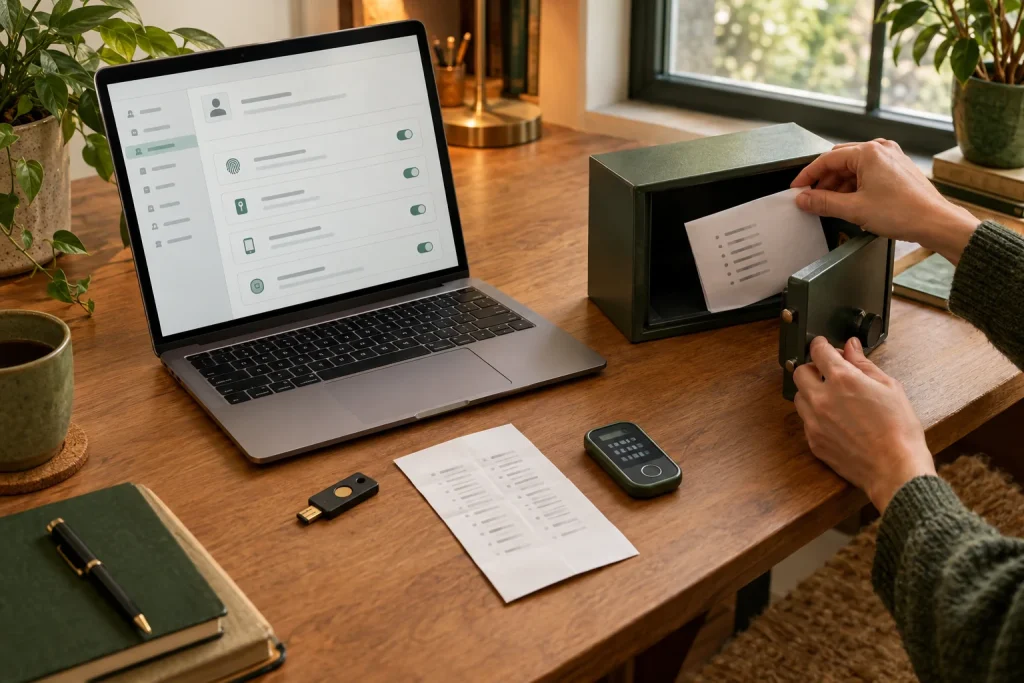

Learning how to use passkeys can make signing in both simpler and more resistant to phishing. Instead of typing a password, you approve access with the screen lock already protecting your phone, computer, tablet, or compatible security key.
Passkeys remove several familiar password problems, but they still require planning. You need to know where each passkey is stored, whether it is backed up, and how you would recover an account after losing a device. This guide walks through the complete process without assuming technical experience.
What a passkey is and how it protects you
A passkey is a digital sign-in credential based on public-key cryptography. When you create one, your device or credential manager generates a related pair of cryptographic keys. The service receives the public key, while the private key is kept by your device or passkey provider.
During sign-in, the service sends a challenge that can be answered with the private key. You authorize that action using a device PIN, fingerprint, face recognition, or another screen-lock method. The private key itself is not sent to the service.
Passkeys are designed to work only with the legitimate website or app for which they were created. This origin binding makes them resistant to conventional phishing sites that imitate a sign-in page. A fake site cannot simply collect and replay a passkey as it could a typed password.
Your biometric information is generally used locally to unlock the credential. The website receives confirmation that the sign-in was approved, not a copy of your fingerprint or face scan.
Passkeys may be:
- Synced passkeys: Stored through a credential manager and made available on other approved devices connected to the same provider account.
- Device-bound passkeys: Kept on one particular device or compatible hardware security key and not automatically synchronized.
The available storage method depends on your operating system, credential manager, device, and the service you are accessing.
What to check before creating a passkey
Start by securing the device or account that will hold the credential. A passkey is only as accessible as the method used to unlock and recover its storage environment.
- Install current operating system and browser updates.
- Turn on a strong device screen lock rather than relying on a simple swipe.
- Protect your device or credential-manager account with its available multifactor authentication.
- Confirm that the email address and phone number listed for account recovery are current.
- Decide whether you need the passkey on one device or synchronized across several devices.
- Avoid creating a personal passkey on a public computer or a device shared with people you do not trust.
For broader device and account safety guidance, consult the Google Safety Center. You can also review BestSpot practical technology articles for related security and privacy guides.
How to use passkeys: step-by-step setup
The wording varies between services, but the basic setup process is similar on supported websites and apps.
1. Sign in through the official site or app
Open the service directly from a trusted bookmark, its known web address, or its official app. Do not follow an unexpected email or message link to create a passkey. Starting from a trusted location reduces the chance of entering account details into an imitation site.
2. Find the sign-in or security settings
Look under sections such as Security, Sign-in methods, Passkeys, or Two-step verification. Some services offer passkey creation during sign-in instead of placing it in account settings.
3. Choose to create a passkey
Select the option to add or create a passkey. Your browser or operating system should display a system-controlled prompt showing where the credential will be saved. That might be the current device, a built-in credential manager, a third-party credential manager with passkey support, or a hardware security key.
Read this prompt carefully. The storage location determines which devices can later use the credential and what happens if your current device is lost.
4. Approve the creation request
Unlock the device with your PIN, password, fingerprint, face recognition, or security-key action. This confirms that someone with access to the unlocked device has authorized creation of the credential.
5. Verify that it appears in account settings
Return to the service’s security settings and check that the new passkey is listed. If the service lets you name it, use a descriptive label such as the device type and owner. Do not put a device PIN or other secret in the label.
6. Test it before changing other sign-in methods
Sign out and try the passkey from the device you intend to use. Do not remove a working password or recovery method until you have confirmed that passkey sign-in succeeds and that you understand the available recovery process.
Signing in with an existing passkey
On a device that already holds or can synchronize the passkey, select Sign in with a passkey or choose the account suggested by your browser or operating system. Approve the request with the device unlock method.
If the passkey is on another nearby device, a service may offer cross-device sign-in. This commonly involves scanning a QR code with the device holding the passkey and confirming proximity. Follow only the system prompts that you initiated yourself. Do not scan a sign-in QR code sent by a stranger or displayed during an unsolicited support conversation.
Cross-device sign-in usually authorizes the current session; it does not necessarily copy the passkey to the borrowed computer. Avoid asking a shared or public computer to remember your account, and sign out when finished.
Manage passkey backups and synchronization
A synced passkey can be convenient because an approved replacement device may regain access through the same credential-manager account. However, synchronization is provider-specific. Do not assume that a passkey stored by one manager will automatically appear in another browser, operating system, or credential manager.
Open your device or credential-manager settings and answer these questions:
- Which account is synchronizing the passkeys?
- Which signed-in devices can access that account?
- What authentication is required to add a new device?
- Can you review and remove old devices remotely?
- What recovery process applies if you lose every approved device?
Protect the synchronization account with a unique password if it still uses one, along with its strongest practical multifactor option. Otherwise, an attacker who takes over that central account may gain a path to synchronized credentials or their recovery process.
If a passkey is device-bound, create another passkey on a second device or compatible security key when the service allows multiple credentials. Keep the spare in a secure location. Hardware security keys can be useful for this purpose, but passkey support, storage capacity, and backup behavior vary by model and service.
Passkey export and transfer are not universally available. Check the actual options before changing phones, resetting a device, leaving a credential manager, or closing an ecosystem account.
Keep account recovery from becoming the weak link
A phishing-resistant passkey does not automatically secure every fallback route. If a service still permits recovery through email, text messages, backup codes, or a password, those methods may provide another way into the account.
Use this recovery plan:
- Secure the recovery email account: Give it its own passkey or a unique password and strong multifactor authentication.
- Review recovery phone numbers: Remove numbers you no longer control and keep the remaining mobile account protected with the carrier’s available account safeguards.
- Store backup codes offline: Keep them in a locked physical location or an appropriately protected encrypted record. Do not leave screenshots in an unprotected photo library.
- Keep more than one passkey when possible: A second trusted device or security key can prevent a single lost device from causing a lockout.
- Review active sessions: Sign out unfamiliar devices and remove passkeys you do not recognize.
Be cautious when a person claiming to be support asks you to approve a prompt, read out a code, scan a QR code, or change recovery information. Legitimate sign-in technology cannot protect an account if you authorize an attacker’s request yourself.
What to do if a device is lost or replaced
If a device containing passkeys is lost, use another trusted device to lock or erase it remotely when that feature is available. Review the central device account, remove the missing device if appropriate, and inspect important services for unfamiliar sessions or security changes.
A strong screen lock helps protect passkeys on a lost device, but prompt action is still sensible. For high-value accounts, sign out the lost device through the service’s security dashboard and remove its passkey after you have confirmed another working sign-in method.
When replacing a device, verify that synchronized passkeys are available before erasing the old one. For device-bound credentials, add a passkey on the replacement device while the old device and fallback method still work.
Limits passkeys do not remove
Passkeys substantially reduce risks associated with stolen, reused, and phished passwords, but they do not solve every security problem. They cannot by themselves prevent malware on an unlocked device, theft of an active web session, deceptive account-recovery requests, or harmful actions by someone who knows your device PIN.
Continue installing security updates, reviewing account alerts, and limiting access to unlocked devices. When evaluating software that may store credentials, use documented security and backup features rather than choosing solely by popularity. BestSpot’s app guides and reviews can help you identify questions to ask before installing account-related tools.
Quick passkey safety checklist
- Create passkeys only from an official app or a site you opened intentionally.
- Use a strong screen lock on every device holding passkeys.
- Know whether each credential is synced or device-bound.
- Test a new passkey before removing an existing sign-in option.
- Maintain a second secure passkey or documented recovery route.
- Protect recovery email, phone, backup codes, and central credential accounts.
- Remove lost devices, unknown sessions, and unrecognized passkeys promptly.
- Never approve an unexpected passkey prompt or QR-code sign-in.
Once you understand where your credentials are stored and how recovery works, using passkeys becomes straightforward: choose the account, unlock your trusted device, and approve the sign-in. The important work is keeping the devices, backups, and fallback routes under your control.