Knowing how to spot fake apps can help you avoid software designed to steal login details, collect unnecessary personal information, charge hidden subscriptions, or impersonate a service you trust. The safest time to investigate an app is before it reaches your phone.
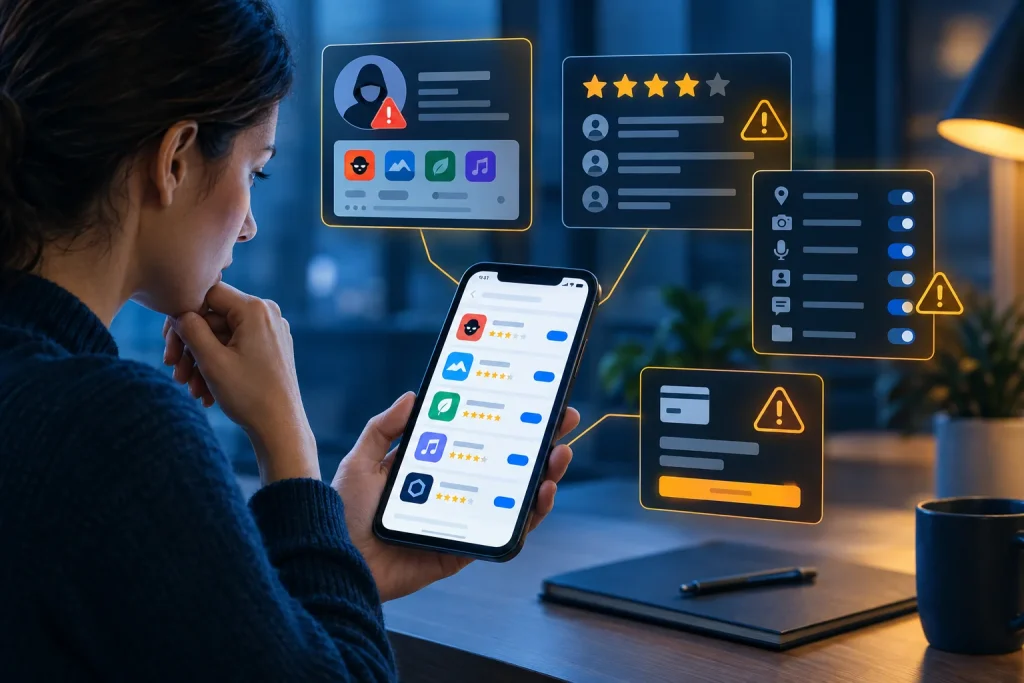
Official app stores use security controls and review processes, but no store can guarantee that every listing is safe or authentic. Scam apps can also look polished, use professional screenshots, and accumulate positive ratings. You therefore need to examine several signals together rather than trusting one badge, review, or download number.
Use the following checks whenever an unfamiliar app wants access to sensitive data, money, financial accounts, health information, private messages, or powerful device settings.
Quick Checklist for How to Spot Fake Apps
- Confirm the exact developer name. Compare it with the publisher named on the service’s official website.
- Inspect the listing history. Look at release dates, update notes, review dates, and install totals when available.
- Read recent and critical reviews. Look for specific experiences rather than relying on the average rating.
- Examine the description and screenshots. Watch for copied text, inconsistent branding, exaggerated promises, or images unrelated to the app.
- Review permissions and data disclosures. Every sensitive request should have a clear connection to a feature you intend to use.
- Check payment terms. Identify the price, billing period, trial conditions, and cancellation method before agreeing.
- Verify the app independently. Reach the store listing from the organization’s official website when possible.
- Stop if details conflict. A familiar icon does not outweigh a mismatched developer, suspicious permissions, or an unusual payment demand.
Check Who Actually Published the App
A recognizable app name is not enough. Impersonators can choose similar names, icons, colors, and screenshots. Start with the developer or seller name shown on the store listing, including its spelling and punctuation.
If the app claims to represent a bank, retailer, government service, game studio, or other established organization, visit that organization’s official website independently. Do not use a website linked from a suspicious message or advertisement. Find its mobile app page and compare the linked store listing with the one you are considering.
Also inspect the developer’s other apps. A publisher claiming to represent a major financial service should not have a catalog filled with unrelated templates, wallpaper tools, or near-duplicate utilities. That mismatch is not proof of fraud, but it requires further verification.
Check the support email and privacy policy domain as well. Free email addresses are not automatically fraudulent, especially for small independent developers. However, an app claiming to come from a large organization should normally provide contact details and web domains consistent with that organization.
Examine Download and Update History
Download history provides context, not a safety certificate. If the store displays an approximate install count, compare it with the app’s claims. A listing that presents itself as the long-established official app of a widely used service but has very few installs and only recent reviews deserves caution.
Some stores do not publish download totals. In that case, look at the version history, update notes, age of reviews, and developer history. Detailed release notes showing ongoing fixes and feature changes can be more informative than repeated entries such as “minor improvements.”
A newly released app is not necessarily fake, and an older app with many downloads is not necessarily safe. Ownership, behavior, and code can change over time. Treat popularity and longevity as supporting evidence only, never as substitutes for checking the publisher, permissions, and payment model.
Read Reviews Without Trusting the Star Average
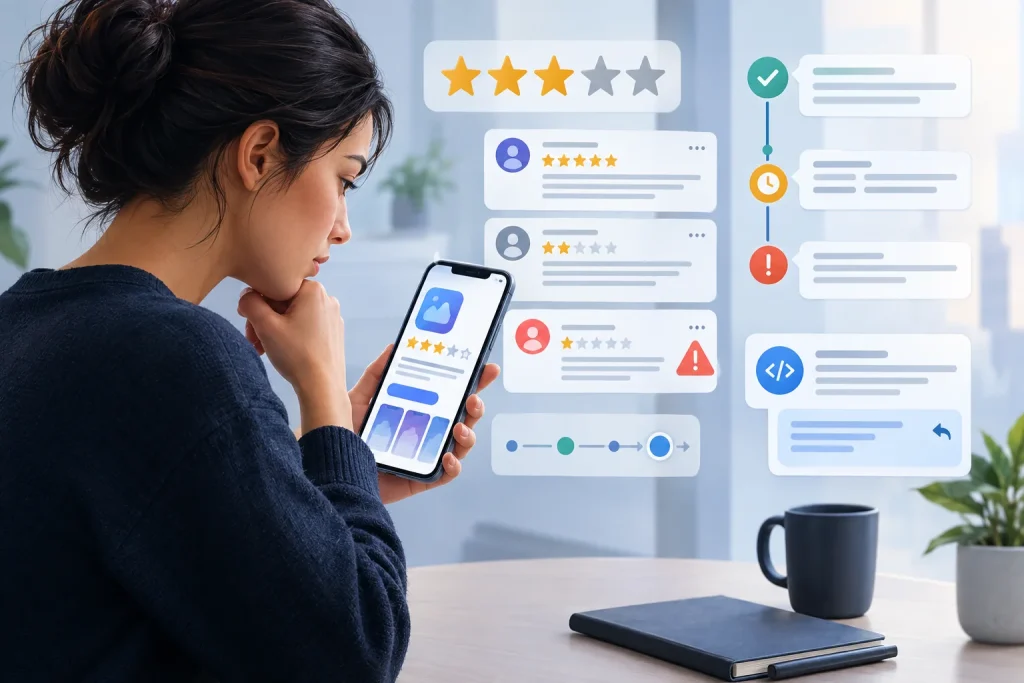
Ratings can reveal problems, but averages hide important details. Sort reviews by newest and read a selection of both positive and critical comments. Recent reviews are especially useful after an update because they may describe behavior that older ratings do not reflect.
Useful reviews mention specific functions, devices, billing experiences, or support interactions. Be cautious when many reviews use nearly identical wording, offer vague praise, repeat the app’s promotional language, or discuss features unrelated to the listing. These patterns can indicate low-quality or manipulated feedback, although they do not prove it.
Critical reviews also need context. Complaints about crashes or a disliked redesign may point to quality problems rather than fraud. Focus on repeated reports of unauthorized charges, impossible cancellation, unexpected login requests, aggressive advertising, account theft, or features that do not match the description.
When browsing BestSpot app coverage or checking currently trending apps, still verify the current store listing yourself. Reviews and editorial coverage can become outdated after an app changes its ownership, permissions, subscription terms, or functionality.
Compare the Description, Screenshots, and Claims
Read the full description rather than stopping at the app name and first screenshot. Fake listings often depend on hurried decisions. Compare the app’s claimed purpose with every feature, screenshot, permission, and payment request.
Look for inconsistent product names, screenshots from a different operating system, references to features that are not shown, copied support text, or links leading to unrelated domains. Poor grammar alone does not make an app malicious, and polished writing does not make it trustworthy.
Be particularly skeptical of guarantees that an app will produce effortless income, deliver certain investment returns, reveal private information about other people, or instantly fix every performance and security problem on a device. Overstated claims matter because they are often used to push users toward payments or sensitive access before the promised service can be evaluated.
Match Every Permission to a Necessary Feature
App stores may show permission details, privacy labels, or data-safety disclosures before installation. Review them carefully, but do not treat a disclosure label as an independent guarantee. An app may also request additional access after installation.
Apply a simple test: can you explain why this app needs this permission for a feature you want to use? A video-calling app may reasonably need the camera and microphone. A basic calculator should not normally need contacts, precise location, or call records.
Pay extra attention when an app requests access to:
- Contacts, messages, photos, or files because these may contain private information about you and other people.
- Precise location because it can reveal where you live, work, and travel.
- Accessibility services because this access can allow an app to observe or control interactions on the screen.
- Device administration because it can give an app powerful management capabilities and may complicate removal.
- Notifications because notifications can contain message previews, verification codes, and account information.
- VPN or configuration profiles because they may affect how device traffic or settings are managed.
- Permission to install other software because it moves activity outside the normal store installation process.
These permissions have legitimate uses, so their presence does not establish malicious intent. The warning sign is a powerful request with no clear connection to the app’s core function. If the explanation is missing or unconvincing, choose another app or use the service through its verified website.
Investigate Payment and Subscription Requests
Before starting a trial or making a purchase, find the exact price, billing frequency, trial end conditions, and cancellation process. A prominent “free” label may refer only to downloading the app, not to using its main features.
Be wary of countdown timers, urgent warnings, or claims that you must pay immediately to prevent an account from being closed. Requests for gift cards, cryptocurrency, wire transfers, or payment through a person-to-person transfer are particularly risky when presented as the only way to unlock an account, claim a prize, receive support, or remove a supposed device infection.
An app should not ask you to type your app-store account password into an ordinary in-app form. Legitimate store purchases normally use the operating system’s payment interface. If a payment screen looks unfamiliar, close it and check the subscription or purchase directly through your device’s account settings.
External payment methods are not automatically fraudulent, because legitimate services may use them in some circumstances. The important questions are who receives the money, whether the terms are clear, whether the destination is verified, and whether the app is using pressure to prevent careful checking.
Verify the App Outside Its Own Listing
Do not let the listing provide all the evidence for its own authenticity. Search for the organization independently and use the app-store link on its official website. For smaller developers, look for a consistent website, a usable privacy policy, support documentation, and a history that matches the listing.
If you received the app through a text message, social media post, pop-up, QR code, or unsolicited email, avoid installing directly from that prompt. Open the official store yourself and repeat the developer checks. Ads can lead to impersonators even when the advertised name looks familiar.
For broader account and device protection guidance, consult the Google Safety Center. General security guidance is useful, but it does not replace checking the identity and current behavior of a specific app.
Use a Stop Rule When Signals Conflict
Learning how to spot fake apps is mainly about noticing contradictions. One minor issue may have an innocent explanation, but several unresolved warning signs should end the download.
Do not install when you cannot verify the developer, the app requests unrelated sensitive access, the reviews repeatedly describe unauthorized charges, or payment instructions rely on urgency and unusual methods. There is rarely a good reason to take that risk when you can pause, contact the organization through a verified channel, or find an alternative.
What to Do If You Already Installed a Suspicious App
Stop entering information and avoid approving new permissions. Remove any powerful access you granted, such as accessibility or device-management privileges, and then uninstall the app. Check your device’s subscription settings separately because uninstalling an app does not necessarily cancel a subscription.
If you entered a password, change it through the real service using a trusted device or browser. Change any other account that reused the same password and enable stronger sign-in protection where available. If you supplied card or bank details, contact the financial institution through the number on its official website, statement, or payment card.
Review recent account activity and report the listing through the app store. Keep receipts and screenshots if you need to dispute a charge. You can also consult relevant BestSpot practical articles for additional guidance on evaluating digital services and protecting personal information.
No single clue reliably identifies every scam. The strongest approach is to compare the developer’s identity, listing history, reviews, description, permissions, and payment requests. When those details support one another, you can make a better-informed decision. When they conflict, do not download the app until you can resolve the discrepancy.