Knowing how to manage app subscriptions on Android helps you see what you are paying for, confirm when a plan renews, and cancel services you no longer need. The main place to do this is the Google Play Store, provided the subscription was purchased through Google Play.
Canceling correctly matters because uninstalling an app does not normally stop its subscription. Likewise, deleting a payment method or simply not using a service is not a substitute for cancellation. You need to open the subscription record and complete the cancellation process.
This guide covers active plans, renewal dates, free trials, payment methods, missing subscriptions, and the final checks that can help prevent unexpected charges.
Before You Manage App Subscriptions on Android
Google Play subscriptions are connected to the Google Account used for the purchase. If you have personal, work, school, or older Google accounts on the same phone, first confirm which one was charged.
You should also identify who handles the billing. Some Android apps use Google Play billing, while others direct customers to a developer’s website or another service. Only subscriptions billed through Google Play appear in the Play Store’s subscription section.
Before starting, gather the following:
- The Android phone or tablet signed in to your Google Account
- The name of the app or service
- A recent receipt or bank statement if you are unsure which account was charged
- Access to any other Google Accounts you may have used
Google Play purchase receipts are generally sent to the email address associated with the purchasing account. Searching your inbox for the app name or a Google Play receipt can help identify the correct account.
How to Find Active Google Play Subscriptions
The Play Store provides a central list of subscriptions purchased through Google Play. Menu wording can vary slightly with app updates, but the standard route is through your profile and payment settings.
Find subscriptions in the Play Store app
Step 1: Open the Google Play Store on your Android device.
Step 2: Tap your profile picture or account icon in the upper-right corner.
Step 3: Select Payments and subscriptions.
Step 4: Tap Subscriptions.
Step 5: Select a subscription to view its details.
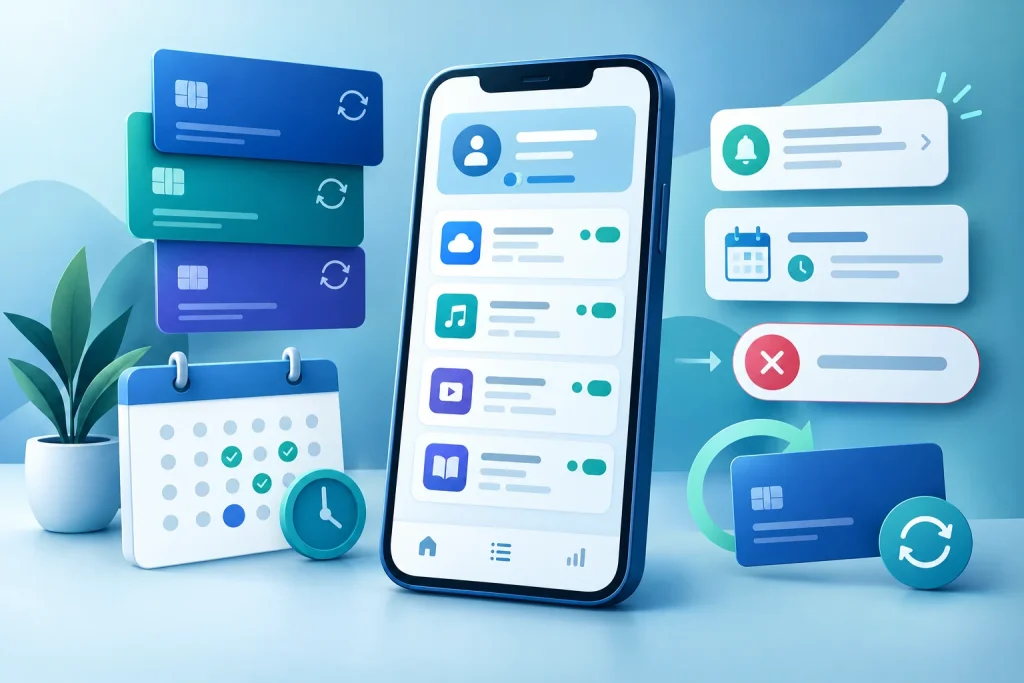
The details page may show the plan, price, billing frequency, next payment date, payment method, and available management options. If you have already canceled, it may show an expiration date instead of a renewal date.
Check subscriptions from a web browser
You can also sign in to Google Play in a web browser and open its subscriptions area. This is useful if your phone is unavailable or the Play Store app is not working correctly.
Make sure the profile shown in the browser is the same Google Account used for the purchase. If the expected plan is missing, switch accounts and check again.
How to Check Renewal Dates and Billing Details
Open each subscription rather than relying only on the main list. The individual details screen is where you can verify when the next charge is expected and whether the plan is still set to renew.
Review these items:
- Plan name: Confirm that you recognize the product or membership tier.
- Billing period: Check whether it renews weekly, monthly, annually, or on another schedule.
- Next payment or expiration date: This tells you whether another charge is scheduled or access is ending.
- Price: Verify the amount associated with the current plan.
- Payment method: Check which card, balance, or other supported method will be billed.
- Status: Look for an indication that the subscription is active, canceled, paused, or otherwise affected.
This review matters because two subscriptions from the same app can have different renewal periods or tiers. Confirming the specific plan reduces the risk of changing the wrong membership.
How to Cancel an Android App Subscription
To cancel a subscription billed by Google Play, return to the subscription’s details page and complete the cancellation flow.
Step 1: Open the Play Store and tap your profile icon.
Step 2: Choose Payments and subscriptions, followed by Subscriptions.
Step 3: Tap the plan you want to stop.
Step 4: Select Cancel subscription.
Step 5: Follow the on-screen questions and confirm the cancellation.
Do not stop when you see a survey, alternative plan, or retention option. Continue until Google Play displays a cancellation confirmation. Button names and the number of screens can vary by subscription.
Afterward, reopen the subscription details and check its status. It should indicate that the plan will expire or will not renew. You may also receive a confirmation email at the address associated with your Google Account.
For a standard paid subscription, cancellation usually stops future renewal rather than immediately removing access. You can generally continue using benefits through the period you have already paid for. The displayed expiration date is the most useful confirmation for your specific plan.
Cancellation does not automatically mean a refund. Refund eligibility is a separate issue and can depend on Google Play policies, the purchase circumstances, and the developer’s rules.
Why uninstalling the app is not enough
Removing an app deletes it from your device, but the billing agreement is attached to your account. Unless you cancel the subscription itself, renewal may continue even when the app is no longer installed.
If you want to uninstall an unwanted app, cancel its subscription first, verify the new status, and then remove the app.
How to Manage Free Trials
A free trial commonly becomes a paid subscription if it is not canceled before the trial ends. When starting a trial, immediately check the subscription page for the trial end date, expected price, and billing frequency.
Use this process:
- Open the trial in the Google Play subscriptions section.
- Record the date shown for the first payment or end of the trial.
- Review the full price and how often it will be charged.
- Set a personal calendar reminder several days before the displayed deadline.
- Cancel through Google Play if you decide not to continue.
Canceling during a free trial can affect access differently depending on the offer. Some trials may end access when canceled, while others may remain available until the stated end date. Read the confirmation screen and check the resulting expiration date before assuming that access will continue.
A reminder matters because notifications can be missed or disabled. A calendar entry gives you a separate prompt to make a decision before billing begins.
Change a Payment Method or Subscription Plan
Some subscription details pages allow you to update the backup or primary payment method used for renewal. Open the subscription, look for its payment settings, and choose an eligible method already saved to your account or add a supported one.
Changing a payment method does not cancel the plan. It only changes how future eligible charges may be collected. Similarly, removing a card is not a reliable cancellation method because another payment method may be available or the account may enter a payment recovery process.
Certain developers also let customers switch between monthly and annual billing or move to another membership tier. If a Change plan or similar option appears, review the price and the date the change takes effect before confirming. Timing and prorating can vary, so use the summary shown on screen as the final reference.
Google Play may offer a pause option for some eligible subscriptions. Pausing is not the same as canceling: the subscription may resume after the selected pause period. Check the stated restart date before using it.
What to Do If a Subscription Is Missing
If you cannot find a plan, do not assume it has been canceled. Work through the likely explanations one at a time.
Check every relevant Google Account
Tap the profile icon in the Play Store, switch to another account, and reopen Payments and subscriptions. Repeat this for each account you may have used. A subscription only appears under the purchasing account.
Confirm that Google Play handles the billing
Search your email for the original receipt and inspect the merchant information on your bank or card statement. If you subscribed on the developer’s website, through a mobile carrier, or through another app marketplace, you will usually need to cancel with that billing provider.
Look for a different service name
The merchant name on a statement may differ from the app’s display name. Compare the charge amount and date with receipts rather than identifying it by name alone.
Contact the appropriate support channel
If Google Play billed the transaction but the subscription remains missing, consult official Google Play Help. If the developer handles billing, use the support details on its official website or app listing.
Avoid posting receipts, order numbers, full card details, or account screenshots publicly. Support teams may need transaction information, but it should only be provided through an appropriate private support channel.
Checklist to Avoid Unexpected Subscription Charges
- Review the Google Play subscriptions list on every Google Account you use.
- Open each plan and check its next payment or expiration date.
- Set calendar reminders for free trials and expensive renewals.
- Cancel through the subscription details page, not by uninstalling the app.
- Continue through every cancellation screen until confirmation appears.
- Reopen the plan and verify that it will not renew.
- Keep the confirmation email until after the expected expiration date.
- Check whether missing plans are billed directly by the developer.
- Remember that cancellation and refund requests are separate processes.
Keep Your App Spending Organized
A brief subscription review every few months can reveal services that are duplicated, no longer used, or billed under an older account. Focus on the status and dates shown in Google Play rather than whether an app is currently installed.
If you are evaluating what to keep, browse BestSpot’s practical app guides and recommendations for help comparing app features without relying only on store rankings. You can also visit the latest BestSpot technology articles for more guidance on managing devices and digital services.
The safest way to manage app subscriptions on Android is simple: use the correct Google Account, verify the billing provider, review the renewal details, and confirm every cancellation. Those checks take only a few minutes and provide clear evidence that an unwanted plan is no longer scheduled to renew.